With the Batch Upload feature, you can easily upload multiple receipts and invoices at once. The built-in AI automatically scans your documents and pre-fills the data for you, allowing you to update your records quickly and efficiently.
What does the Batch Upload feature do?
- Document scanning: Upload up to 25 images or PDF files at once.
- Smart AI recognition: The AI reads your files and automatically creates draft costs with pre-filled data (such as amount, date, and description).
- Fast processing: You no longer need to enter receipts manually one by one.
Step-by-step guide: Uploading multiple files
- Go to the cost overview: Navigate to the Costs tab in the main menu.
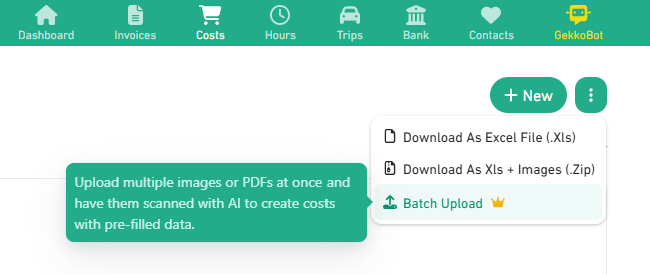
- Open Batch Upload: Click on the three dots menu icon in the top right corner (next to the + New button) and select Batch Upload.
- Select or drag your files: A window will open where you can add your files. Drag your PDF or image files directly into the dotted upload box, or click 'Click or drag your files here' to select the files from your computer.
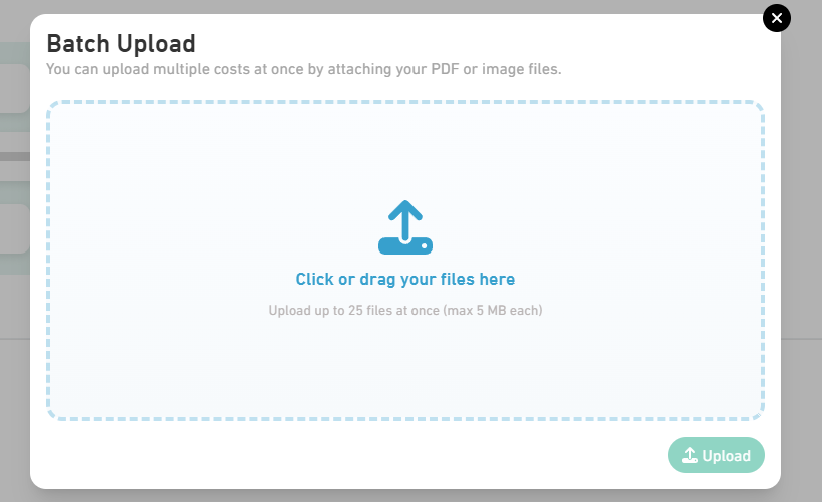
- Start upload: Click the Upload button to process the files.
Check the results
After uploading, the processed documents will appear directly in your cost overview. The costs will be labeled with 'Automatically scanned by AI'.

The status will initially be set to 'Incomplete'. Click on the relevant item to review the data filled in by the AI (such as supplier, VAT, and total amount) and save it permanently. Finally, make sure the correct cost category is selected.
Specifications and limitations
- Maximum quantity: Maximum of 25 files per upload session.
- Maximum file size: Maximum of 5 MB per file.
- Supported file types: PDF and images (such as JPG, PNG).
Was this article helpful?
That’s Great!
Thank you for your feedback
Sorry! We couldn't be helpful
Thank you for your feedback
Feedback sent
We appreciate your effort and will try to fix the article